HTML5 Video backgrounds
by Ted K.
 In the digital age, having an engaging and visually appealing website is crucial for your online presence.
Nowadays, with the rise of video content everywhere, visually appealing means having video content of some
sort.
In the digital age, having an engaging and visually appealing website is crucial for your online presence.
Nowadays, with the rise of video content everywhere, visually appealing means having video content of some
sort.
This post will cover the why and how to include a video as a medium on your landing page. Specifically, we’ll show how to achieve entire viewport (full page) background videos in a sensible way from the human interface, network performance and portability perspectives.
If you are a marketing person, startup founder or in similar work - this is for you. Check the demo to see if you like it, and ask your front-end gal to make it happen.
If you are that front-end gal - this post is for you and it talks about the technical details of how to implement this technique in an efficient and portable way. Although, you may want to go straight to the GitHub repo.
The Whys?
Why video background?
If “a picture is worth a thousand words”1, then a video clip is worth 1k * FPS * duration words!
Jokes aside, video content is great at captivating your audience. The large-scale video backgrounds can help you elicit the emotion that you want people to feel to associate with your brand. Yes, you can totally achieve similar results with static images. Videos are just that bit better (opinion).
Additionally, since digital presence is a standard, adding video content to your website can elevate your brand just that bit above the average to make a difference. It may not matter for high-tech entities from which that level of technical excellence is expected. Still, for your local honey manufacturer, nice touches like these can have a significant impact on brand perception.
Finally, a video background can give your website that extra wow! factor cheaper than with other means like animations or dynamic HTML/JS/CSS components. Due to the prevalence of video content, finding the right stock footage or even social media content can be easier and cheaper than the investment in an artist’s time.
Why not?
As with everything, there are a few potential problems with the use of video backgrounds.
The first issue that comes to my mind is simply the extra effort required. The media assets have to be created and then transcoded to web-optimised formats. Ideally, you want to create 2 variants of the content, one optimised for portrait and the other for landscape orientations. It just adds up.
Then, there is the problem with the extra bandwidth. It’s not a surprise that video files are heavier than static images. This can affect the experience of people opening your webpage and your operational costs through higher bandwidth bills. That being said, the size of the video assets is something you have full control over, and it is possible to find that sweet spot perceived quality of the media and the size of the assets. Additionally, with the use of modern video codecs (more below) and potentially some clever application of blurring and darkening, this can be mitigated.
What’s in store for me?
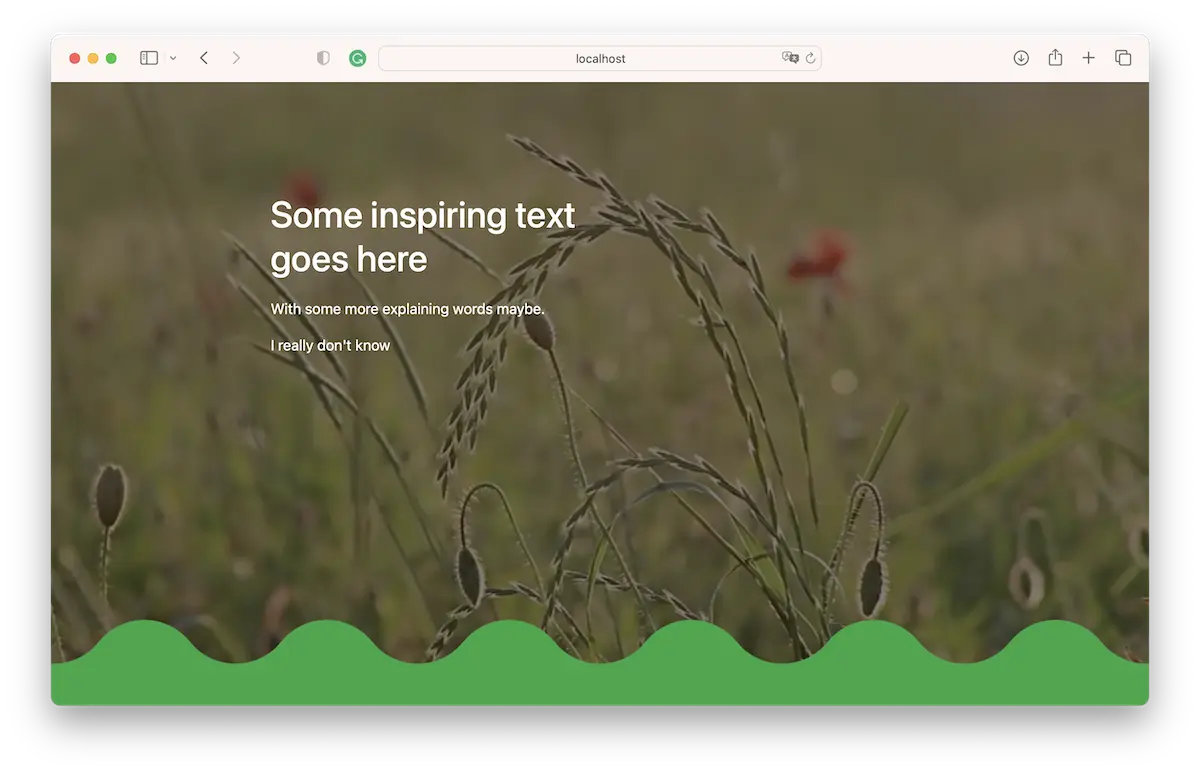
Through this “editorial piece”, we’ll demonstrate how to create the following website:
From a technology perspective, the solution offers the following features:
- separate videos for portrait and landscape orientation. Portrait videos will be used for devices with a
screen aspect ratio higher than 1.0. For smaller or equal - a portrait - three video formats for each orientation - HEVC, VP9 and AVC
- delayed loading of videos to give the browser enough time to fetch other content before the heavy videos
- dynamically selected poster, again for portrait and landscape orientations
After dealing with the What? and Why?, we’ll address the How? of the soluction in the sections below.
The Hows?
TL;DR
- use two different media assets for portrait and landscape.
- use some JavaScript magic to choose which one to use based on the device screen’s AR; see repo for details
- use three different video codecs for each of the two assets
- AVC as a baseline for broad support
- HEVC for Apple devices
- WebM for everyone else
- Use multiple
<source>tags to let the browser choose which video codec it likes the most. See repo for more details
Content Preparation
It is 2023, and landscape and portrait orientations are essential for video content. This means your video content must be high quality in both orientations, and simply cropping a landscape video into a portrait format is no longer sufficient.
Fortunately, plenty of stock footage is available in both orientations—it just requires a bit more effort to find and edit. While tools like Apple iMovie don’t support portrait orientation, alternatives like DaVinci Resolve or Canva can edit your video content effectively.
The process of video editing is highly dependent on your needs and environment and thus will be left unaddressed.
Encoding
Before diving into encoding, being familiar with terms like video codec, AVC, HEVC, WebM, and others is essential. If you need a refresher, check out this informative video:
During the 2010s, web browsers experienced a form of “video codec wars”2,3 . As a result, it’s necessary to support multiple codecs and formats to achieve the best quality and coverage. In this example, we’ll support three codecs: AVC, HEVC, and VP9.
AVC
AVC, Advanced Video Coding aka H.264, introduced in 20044, is the oldest of the video codecs we’ll be supporting. It also happens to be the most widely adopted video format at the time of writing, with approximately 98% of people using the Internet able to consume AVC content5. Finally, with the technology behind AVC being so mature, AVC is the most efficient format from the battery life perspective.
The age of this video format indeed shows, with content encoded using AVC needing approximately 50% more bandwidth to achieve similar perceived quality as media encoded using the more recently developed codecs6,7,8.
In 2023, AVC is more of a backup format, a way to cover the baseline of “older devices”, given its ubiquity. That being said, since the size of media processed with it is significant, one may question if it’s not better to fall back to a static image in this case. Especially, since the use of “older devices” can be correlated with worse connectivity, which may overall lead to a worse experience than when using just an image.
VP9
VP9, the video codec by Google. Successort to the VP8, predecessor to AV19. In simple terms, good coverage on Android devices or desktops10, quality to bitrate ratio comparable to HEVC.6,7,8.
HEVC
Some may find the Inclusion of an HEVC, the High-Efficiency Video Coding, aka H.26511 format questionable, as its use is limited mainly to Apple software (Safari and Chrome on macOS/iOS)12.
The decision to use it is driven by the fact that it offers the best quality to bitrate ratio in most cases (although the difference is negligible) while at the same time offering better energy efficiency on the devices supporting it. Even with support recently added to Safari13 (and AV1, it’s successor), the support is patchy and most likely limited to software decoding, especially on mobile(citation needed). Software decoding is orders of magnitude more energy intensive than the use of dedicated hardware(source required).
Encoding itself
We’ll use FFmpeg for all transcoding, following a workflow that involves creating significant source video assets. (portrait + landscape) and running a script to downscale and convert them to the desired format. When installing Ffmpeg, make sure that you do so with the support of libx264 and libx265, which may be off by default, depending on your platform and region.
To help with the transcoding of source material into all the formats we’ll need, you can refer to the script. Most of the script is boilerplate code, but what matters is the calls to FFmpeg.
First, for extracting the first video frames into a static image:
ffmpeg -y -i $input_vid \
  -vframes 1  \
  -f image2 \
  -vf "$video_filter" \
   ${out_dir}/${vid_name}.webp
It simply asks Ffmpeg not to ask any questions, take the input file, just its first frame, filters it using a shared filter, and outputs it as a WebP image into a designated output directory. Easy.
Then, we have the AVC transcoding:
ffmpeg -y -i $input_vid \
  -an \
  -vf "$video_filter" \
  -c:v libx265 -b:v ${hevc_rate} -preset slower -tag:v hvc1 \
  ${out_dir}/${vid_name}_hevc.mp4
Here we’re asking ffmpeg to:
- stay positive (
-y- don’t ask any questions assume yes for all), - take input source video (
-i $input_vid), - remove any audio stream if present (
-an), - scale the video using shared filter (
-vf "$video_filter"), - encode the video stream using the libx264 encoder (
-c:v libx264)… - …at given target bitrate (
-b:v ${avc_rate})… - …and to take its time since it’s 2023 and we have fast CPUs (
-preset slower), - finally, the encoded video should be saved as given mp4 file (
${out_dir}/${vid_name}_avc.mp4)
Then, goes HEVC:
ffmpeg -y -i $input_vid \
  -an \
  -vf "$video_filter" \
  -c:v libx265 -b:v ${hevc_rate} -preset slower -tag:v hvc1 \
  ${out_dir}/${vid_name}_hevc.mp4
It’s identical to AVC, with the most notable difference in the -tag:v hvc1 parameter. This parameter
configures a gnarly detail of the libx265 encoder. It talks about how to store specific bitstream parameters.
With HEVC, there are two options, hvc1 and hev1, and Apple devices happen to support only hvc1, which is not
default14 on Ffmpeg.
Finally, for VP9:
ffmpeg -y -i $input_vid
  -an \
  -vf "$video_filter" \
  -c:v libvpx-vp9 -b:v ${webm_rate} \
  ${out_dir}/${vid_name}_vp9.webm
Presentation
With all the media prepared, it’s time to show it to your target audience. For that, you’ll need some HTML5, CSS, and JS. I believe in self-explanatory commented code, so for all the gory details on how to build this thing, please refer to the GitHub repo.
The demo website is just a simple sample with most content generated by ChatGPT. I sometimes pretend to be a website designer, but I really am not, so bear that in mind.
Layout
The layout is similar to when using full-screen images. You have to pay special attention to making sure that
the configuration of laying out the video tag matches the background poster image.
Otherwise, you’ll have to deal with the jarring transition from poster image to live video. In the proposed
solution, we achieve this by using a background that fills the video element (using CSS background-size:
100% 100%;) and that the geometry of the video element always matches the source video with excess being
cut-off via outer box + overflow: hidden.
Additionally, a correct background image is selected also using CSS and media query selectors:
.hero-bg video {
  /* .. */
  aspect-ratio: calc(9/16);
  background-image: url('assets/bg_portrait.webp');
}

@media screen and (min-device-aspect-ratio: 1) {
    .hero-bg video {
        background-image: url('assets/bg.webp');
        aspect-ratio: calc(16/9);
    }
}
Video asset Loading
The <video> tag has three <source> tags, one for supported media format. It allows browser to
choose the preferred codec:
<video
  muted loop playsinline
  poster="data:image/gif;base64,R0lGODlhAQABAIAAAAAAAP///yH5BAEAAAAALAAAAAABAAEAAAIBRAA7">
  <source data-src="assets/bg_hevc.mp4"
          data-portrait-src="assets/bg_portrait_hevc.mp4"
          type='video/mp4; codecs="hvc1"'/>
  <source data-src="assets/bg_vp9.webm"
          data-portrait-src="assets/bg_portrait_vp9.webm"
          type="video/webm" />
  <source data-src="assets/bg_avc.mp4"
          data-portrait-src="assets/bg_portrait_avc.mp4"
          type="video/mp4" />
</video>
The browser will go through the list of sources from top to bottom and won’t stop until it finds the format it likes (aka can play). To put it differently… it will stop on the first codec that it likes, so make sure to put the AVC backup format at the bottom of the list; otherwise, it will always be selected first.
Additionally, note that the video tag has an inline poster - a transparent gif allows us to use the CSS
background-image attribute to control which poster to use (portrait vs landscape).
Finally, the actual loading of the media assets is delayed by 500ms and is done via a tiny JavaScript
function. The function will go through all the source tags and, depending on the screen’s aspect ratio, will
either use the data-src or data-portrait-src as new src of the <source> tag:
function _loadVid(video) {

  video.childNodes.forEach((srcNode) => {
      // go through all the sources and pick appropriate src file - either portrait or landscape
      if (srcNode.hasAttribute && srcNode.hasAttribute(_srcAttrib)) {
          srcNode.src = _getVidSrc(srcNode)
      }
  })
  // ...
}

function _getVidSrc(sourceNode) {
    if (_isLandscape()) {
        return sourceNode.getAttribute(_srcAttrib)
    }
    return sourceNode.getAttribute(_srcAttribPortrait)
}

function _isLandscape() {
    let h = window.screen.availHeight
    let w = window.screen.availWidth
    return w / h > _landscapeMinAR;
}
Parting Words
I hope you enjoyed learning about HTML video backgrounds, and I encourage you to check out our website where this method was applied: FoodieApp. Happy coding!
References
- A picture is worth a thousand words. 2023, March 17. In Wikipedia.
- Google’s WebM v H.264: who wins and loses in the video codec wars? 2011, January 17 In The Guardian
- How Cisco ended the HTML5 Video Codec Wars. 2023, February 27. In Taylor Callsen’s Blog.
- Advanced Video Coding. (2023, April 20). In Wikipedia.
- Can I use… avc?, 2023, May 5th
- H.265 HEVC vs H.264 AVC: 50% bit rate savings verified. 2016, January 12. BBC Research & Development Blog
- Netflix Finds VP9 Offers Strong Compression At 1080p, Approaches HEVC Performance. 2016, August 30. Tom’s hardware
- Performance comparison of video coding standards: an adaptive streaming perspective. 2018, December 13. Netflix Technology Blog
- VP9. (2023, May 5). In Wikipedia.
- Can I use… vp9?, 2023, May 5th
- High Efficiency Video Coding. 2023, April 22. In Wikipedia.
- Can I use… hevc?, 2023, May 5th
- Apple adds WebM video playback support to Safari with macOS Big Sur 11.3. 2021, February 18th. 9to5 Mac
- What’s the difference between ‘hvc1’ and ‘hev1’ HEVC codec tags for fMP4? 2021, December on Bitmovin Community forum
Subscribe via RSS